Microsoft 365 (formerly Office 365) is a powerful suite of productivity apps that many businesses rely on to keep employees working efficiently. But it also creates challenges for IT administrators and anyone making decisions about Microsoft 365 in their organization. This article covers the most common issues caused by poor user management, and how to avoid them.
Issues Caused by Poor Microsoft 365 User Management
Security Risks
Microsoft 365 is designed for sharing. With SharePoint, Microsoft Teams, OneDrive and Outlook, users have many different ways to send documents and data to each other.
That’s a real benefit, but it also creates security vulnerabilities. If data is shared with an unauthorized party, intentionally or not, it can result in a data breach. The ability to share individual files or entire folders, including with people outside the company, creates many opportunities for that to happen.
User permissions are another concern. Companies often give employees broader access than they need instead of granting permissions tailored to each job role. If one of those accounts is compromised, the attacker inherits all of its access, which raises the risk of data loss or theft.
Cybercriminals steal credentials in many ways. In a phishing attack, an email that appears to come from a trusted source tricks the user into typing their credentials into a fake Microsoft 365 sign-in page. Malware on a user’s computer can also hijack the account and use it to list users and external contacts and access files.
The single most effective defense is multifactor authentication (MFA). A Microsoft research study found that MFA reduced the risk of account compromise by more than 99.2%. Making sure every account has MFA enabled is a core part of user management.
Dormant Accounts
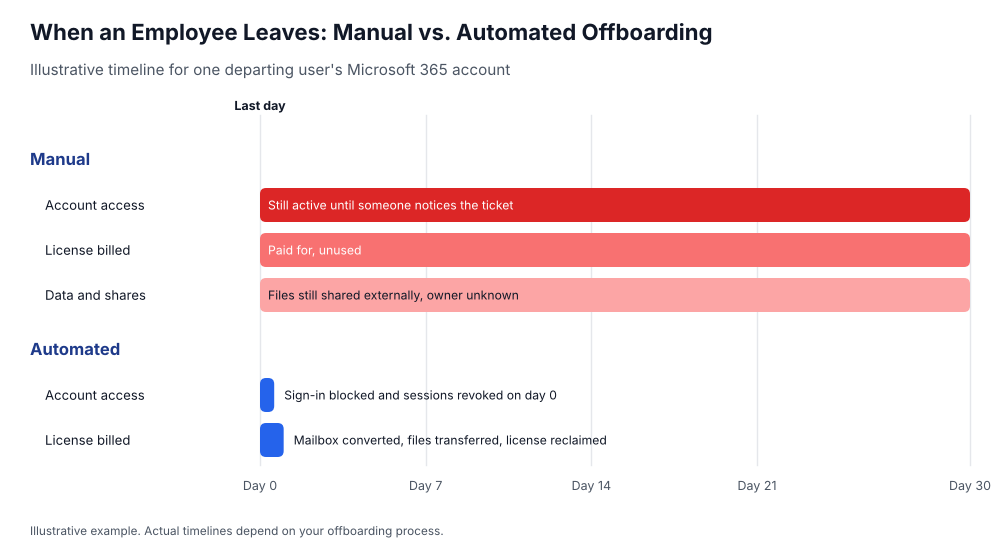
When employees leave the company, their Microsoft 365 accounts often stay active, sometimes for weeks or months. No one is watching those accounts, which makes them an attractive target: an attacker who gets into a dormant account can use it to send phishing emails, access files or spread ransomware, often without anyone noticing.
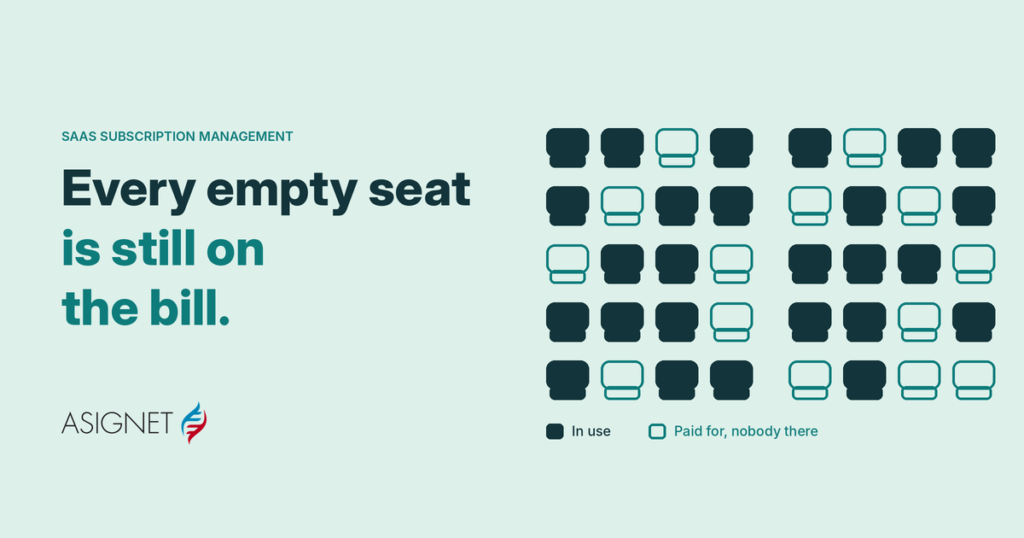
Dormant accounts also cost money, because each one usually still holds a paid license. And former employees’ files may remain shared with people outside the company long after anyone remembers why.
The problem grows with scale. If you have a large number of users, especially guest users from outside your company who need different levels of access, it becomes difficult to keep track of which accounts should still be active.
Workflow Inefficiencies
Productivity tools are great for increasing efficiency, but managing them manually can become a major time drain. When every new hire, role change and departure requires an IT ticket, new employees wait days for the accounts and licenses they need, and IT staff spend hours on repetitive setup work.
Manual processes also lead to permission mistakes. If a user who has been granted excessive permissions shares files or folders externally, the result can be a data breach. That’s why it’s critical to have administrators who understand the platform, along with processes that configure permissions consistently for every user.
Lost Profits
Poor user management affects the bottom line. When users can’t access email or files because of authentication or provisioning issues, they can’t work, and that lost productivity sets off a domino effect of other inefficiencies. Paying for licenses that nobody uses adds further waste, and a compromised account can lead to the far larger costs of a data breach.
Hyperautomation helps companies find these hidden costs, identify where they can be more efficient and act on it. Automating day-to-day user management increases productivity, reduces costs and improves business continuity.
Microsoft 365 User Account Management Checklist
Setup
The Microsoft 365 admin center is where you manage your business in the cloud. You can add and remove users, assign and change licenses, and reset passwords. To get there, go to admin.microsoft.com or, if you’re already signed in, select the app launcher and choose Admin.
Management
The admin center has two views. Simplified view helps smaller organizations manage their most common tasks, while dashboard view includes more complex settings and tasks. You can switch between them from the top of the admin center.
Offboarding
When an employee leaves, block their sign-in right away and sign them out of all sessions. Then transfer their files to a manager or colleague, convert their mailbox to a shared mailbox if others need access to it, and remove or reassign their license so you stop paying for it.
Subscriptions
For some subscriptions, you can only cancel during a limited window after you buy or renew. If that window has passed, turn off recurring billing so the subscription ends at the end of its term.
Support
Microsoft provides technical, pre-sales, billing and subscription support for Microsoft 365 business and enterprise subscriptions. Authorized administrators can submit and track service requests and find support phone numbers in the Microsoft 365 admin center.
Automate Microsoft 365 User Management With Asignet
Asignet’s ROBOT4IT platform uses AI and hyperautomation to manage Microsoft 365 license provisioning, control and usage, reducing licensing costs and the burden of administrative follow-up.
You can automate onboarding and offboarding, simplify day-to-day operations, improve data protection and stop paying for unused licenses, machines and instances.
Talk to Asignet about automating your Microsoft 365 user management.